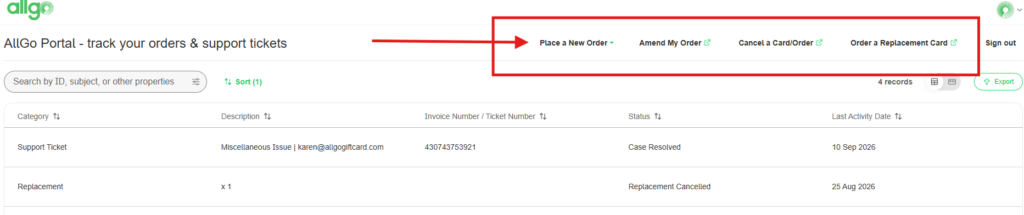
The AllGo Customer Portal gives you real-time updates on your AllGo Mastercard Orders and your Support Tickets.
It also allows you to send messages directly to AllGo Customer Service with your order or ticket details included so you can get a faster response.
How to do I access the Customer Portal?
You will need to register once, and then all orders and tickets associated with your email address will be displayed in real-time.
- Step 1
Once an Order has been submitted or a Support Ticket has been opened, you will receive the link to the Customer Portal in your confirmation email.
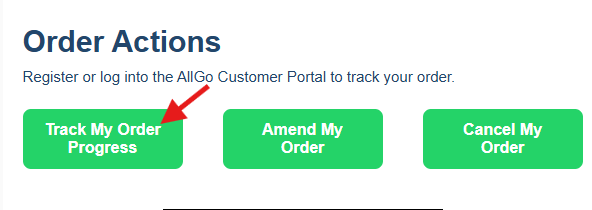
- Step 2
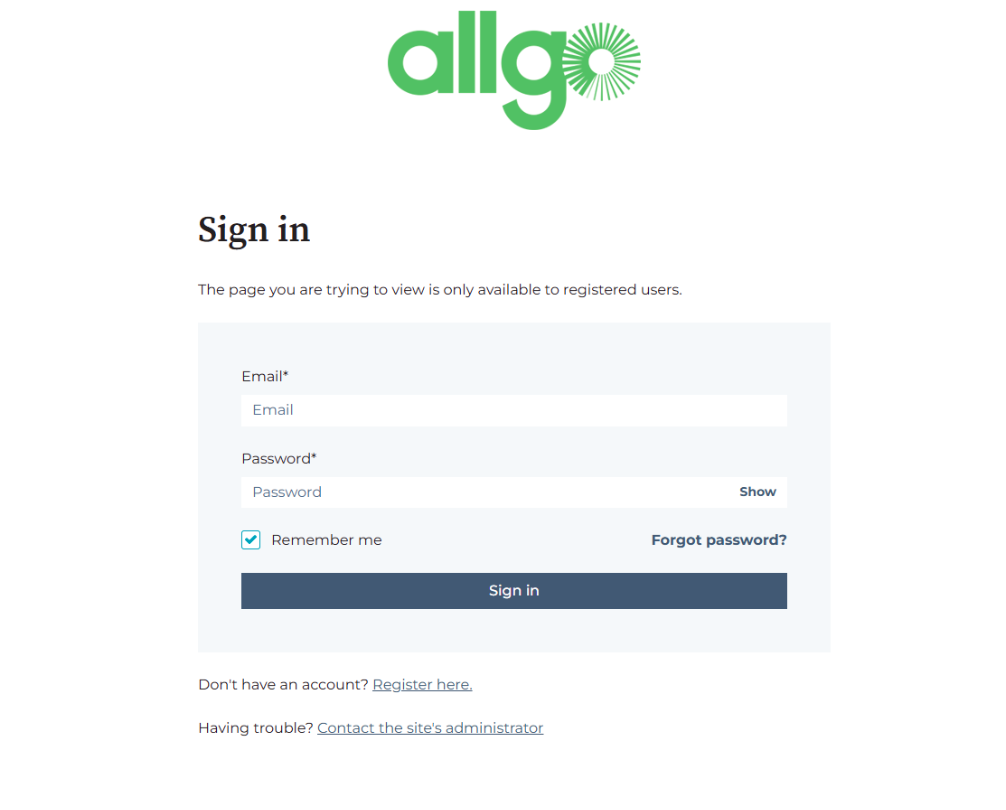
You need to log in or register by clicking on ‘Register Here’ if you do not already have a login.
Remember to use the same email as your Order or Support Ticket.
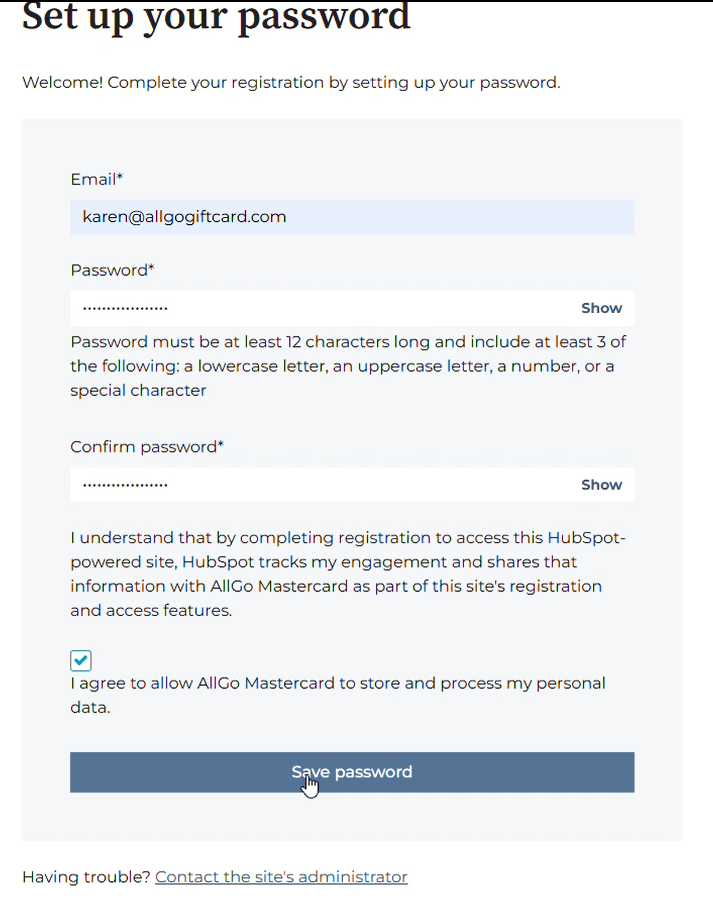
When registering, you will need to create a password, agree to the Ts&Cs, and then verify your email address.
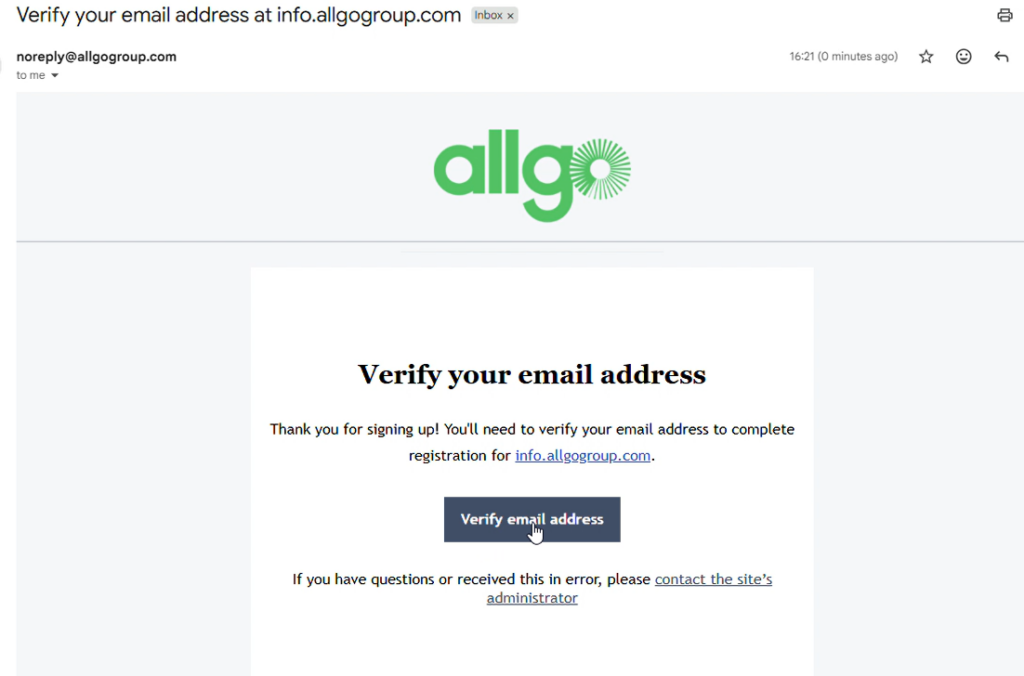
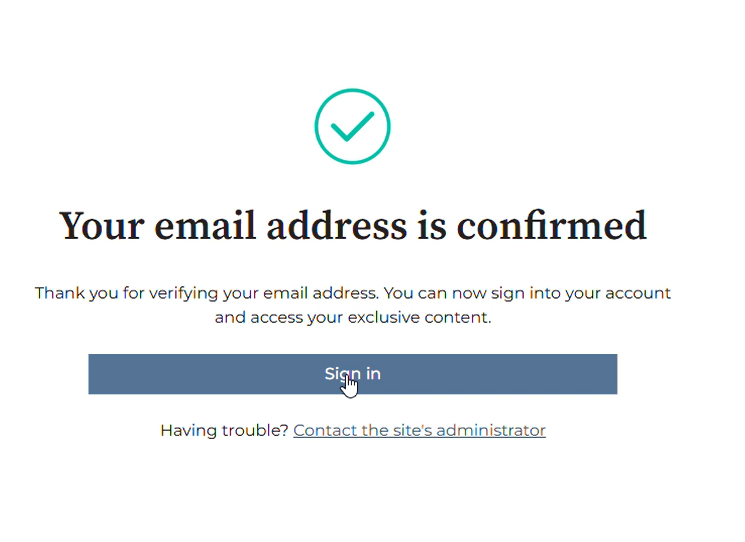
Watch Video: How to Register and Log into the AllGo Customer Portal
How to track the status of my Order or Support Ticket in the Portal
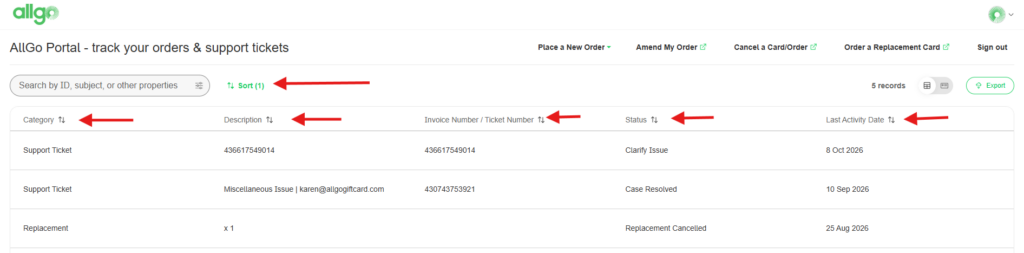
Once you have logged into the Customer Portal, you will see list of Orders and Support Tickets associated with your email address. The information you see on each order or ticket will include-
1. Category: Identifies the type of request, such as Orders, Replacement, Refunds & Cancellations and general Support tickets, associated to your contact.
2. Description: Provides a short description of the Order or Support Ticket.
3. Invoice Number / Ticket Number: Provides the reference number associated with the Order or Support Ticket. Use this number when tracking or referring to your request.
4. Ticket Status: This shows the real-time Order / Support ticket status.
5. Last Activity Date: This shows the last time an action was taken with your Order and Support Ticket.
6. Search: you can search for a specific Order or Support Ticket using its name, subject, Invoice number or other available details.
Send Messages to AllGo Customer Service
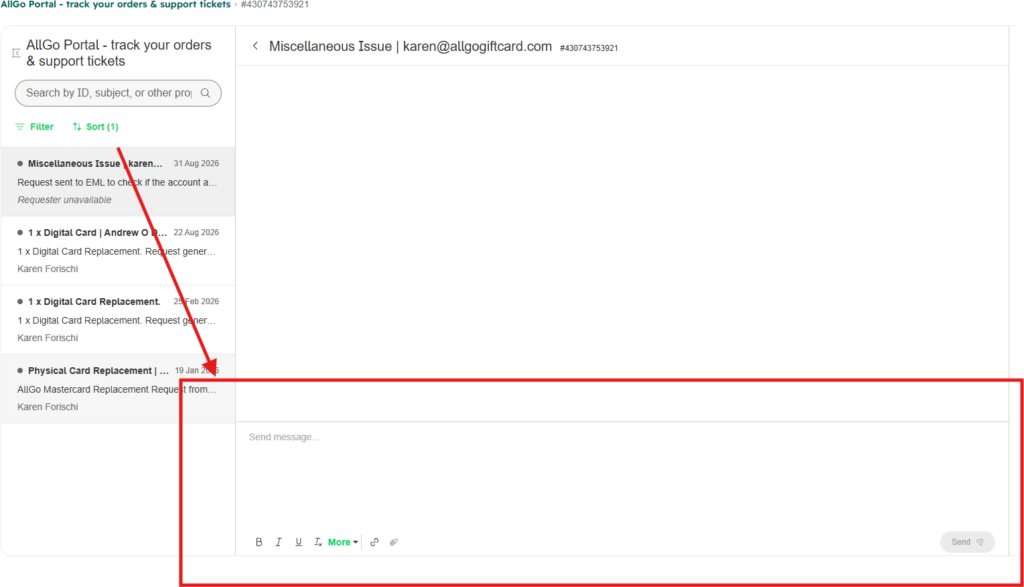
You can send messages directly to AllGo Customer Service with your order or ticket details included so you can get a faster response. To do this-
- Select the Order or Support Ticket from the list and click Send Message
- Please ensure to message from the specific Order or Support Ticket for which you are requesting an update. This will help us avoid delays and ensure you receive the correct information.
Customer Portal Useful Links:
The Customer Portal also provide the links in case you need to: